Microsoft Fabric Licensing…it’s one of those topics that’s never fun but always critical to discuss.
Every week, I get emails, calls, and LinkedIn messages from prospects and clients asking things like:
- “How does Microsoft Fabric licensing actually work?”
- “What’s the cost difference between pay-as-you-go and reserved capacity?”
- “How do I avoid overspending?”
Making sense of Fabric licensing isn’t just about avoiding mistakes, it’s about setting your organization up for success. Licensing impacts everything from your team’s efficiency to your bottom line.
That’s exactly why we put this Fabric license guide together. Whether you’re just starting your Fabric journey or optimizing your current setup, we’ll help you navigate this complex terrain with confidence.
Important Licensing Update (2025)
Microsoft has discontinued Power BI Premium per capacity (P-SKUs) as of January 1, 2025. Organizations previously using P1, P2, P3, P4, or P5 SKUs must transition to Fabric F-SKUs at their next renewal. Here are the equivalent capacities:
- P1 → F64
- P2 → F128
- P3 → F256
- P4 → F512
- P5 → F1024
New customers cannot purchase P-SKUs. Existing customers without an Enterprise Agreement had to transition by February 1, 2025. EA customers can renew P-SKUs until their agreement ends, then must migrate to Fabric capacity. All P-SKU capabilities are available in equivalent F-SKUs, with Fabric providing additional workloads beyond Power BI. For more information on this transition, consult your Microsoft account representative.
What Is Microsoft Fabric?
Microsoft Fabric offers a comprehensive solution that integrates tools like Power BI, Synapse, and Data Factory. It addresses a common pain point for data-driven organizations: switching between disparate systems to manage, analyze, and act on data.
With Fabric, all your data needs are managed under one roof, streamlining workflows and enabling real-time insights helping organizations move from reactive to proactive decision-making.
If you’ve ever felt bogged down by siloed systems or limited by tools that don’t “talk” to each other, Fabric is designed for you. By unifying your data ecosystem, it:
- Reduces operational inefficiencies.
- Improves collaboration between technical and non-technical teams.
- Provides faster access to the insights you need to stay competitive.
In short, Fabric helps organizations do more with less making your data work harder so your team can work smarter.
What Problems Does Microsoft Fabric Solve?
Microsoft Fabric isn’t just a tool, it’s a solution to the everyday struggles of managing and leveraging data effectively. Here are a few scenarios of how organizations might use Fabric to solve real-world problems and drive better outcomes.
AI-Powered Analytics with Copilot
Fabric’s integrated Copilot capabilities (available on F64+ capacities) enable business users to interact with data using natural language. Ask questions in plain English and receive insights, generate reports, or create data transformations without writing code democratizing analytics across your entire organization.
Integrated Analytics Across Departments
Imagine a marketing team collaborating with finance and operations without jumping between multiple tools. Fabric makes it possible to consolidate data sources and generate actionable insights in real time, breaking down data silos that slow decision-making.
End-to-End Data Engineering and Science
From ingesting raw data to building predictive models, Fabric enables seamless collaboration between data engineers, data scientists, and business users. All workloads from data pipelines to machine learning models, operate on the same unified data foundation in OneLake.
Real-Time Operational Decision-Making
Fabric’s Real-Time Intelligence capabilities enable organizations to ingest, process, and analyze streaming data instantly. For industries like retail, logistics, or financial services, this means detecting and reacting to inventory shortages, supply chain disruptions, fraud, or market changes in real time using event-driven architectures and KQL queries.
Simplified Data Integration with Mirroring
Fabric’s Mirroring feature continuously replicates data from external databases (Snowflake, Azure SQL, Cosmos DB, and others) into OneLake in near real-time, without complex ETL pipelines. This automated synchronization reduces engineering overhead and accelerates time-to-insight.
Simplified Planning and Forecasting
Fabric’s integration with Power BI unlocks advanced planning features, such as write-back capabilities, enabling teams to adjust forecasts and budgets dynamically. Finance teams can model scenarios and update plans directly within their reports.
Enterprise-Grade Data Governance and Security
Fabric provides centralized data governance through Microsoft Purview integration, ensuring consistent security, compliance, and data lineage across all workloads. Organizations can enforce sensitivity labels, data loss prevention policies, and access controls uniformly, a critical capability for regulated industries.
Cost Optimization Through Resource Consolidation
By consolidating multiple analytics tools into a single platform, Fabric can reduce total cost of ownership. The unified capacity model means compute resources aren’t siloed. Unused capacity from one workload automatically becomes available for others, maximizing infrastructure ROI and reducing licensing complexity.
Understanding Fabric Capacity and Compute Units (CUs)
Before diving into the details of Fabric’s capacity-based licensing model, it’s important to clarify one foundational requirement…
Microsoft Fabric runs within a Microsoft Entra tenant (typically included with Microsoft 365 subscriptions). Users are automatically assigned a free “Fabric (Free)” license upon first sign-in to the Fabric portal (if Fabric is enabled in the tenant), which provides access to non-Power BI Fabric workloads such as Data Factory, Synapse Data Engineering, and Real-Time Analytics. However, to create and share Power BI content, additional Power BI Pro or Premium Per User (PPU) licenses are required unless the workspace is on an F64 or higher capacity (see details below).
Unlike traditional per-user licensing models, Microsoft Fabric operates on a capacity-based model. This approach allocates resources dynamically based on workload demands, providing flexibility and scalability through Compute Units (CUs). Let’s break down what this means for your organization.
What Is Fabric Capacity?
With Fabric, you only need one type of capacity to power all your experiences across the platform. A Microsoft Fabric capacity resides on a tenant and acts as a distinct pool of resources allocated for data operations. The size of the capacity determines the amount of computational power available to your organization.
Fabric capacity simplifies provisioning by removing the need to manage separate resources for each project or workload. Instead, your capacity encompasses all Fabric services—whether you’re running Power BI, Synapse, or Data Factory workflows.
It’s important to note that storage is licensed separately, meaning Fabric’s capacity only covers the computational resources required for tasks.
Another important note is that for any Fabric SKU under F64, users interacting with Power BI components will also require a Power BI Pro license. This ensures proper access and functionality across the platform. Specifically: For F64 or larger capacities, Power BI report viewers do not need Pro licenses; only creators/publishers do. For capacities smaller than F64, both creators and viewers need Pro or PPU licenses to consume Power BI content.
What Type of Compute Is Associated With Fabric Capacity?
Microsoft Fabric employs a flexible computing model that supports a variety of workloads. Resources such as CPU, memory, disk I/O, and network bandwidth are allocated dynamically, with Compute Units (CUs) serving as the universal measurement for resource usage.
Fabric operations fall into two categories:
- Interactive Operations: On-demand tasks triggered by user actions, such as querying a report or dashboard. These operations are designed for quick responses, and compute resources are allocated as needed.
- Background Operations: Scheduled tasks, such as data refreshes or pipeline executions, that run without user interaction. These operations are allocated resources in advance for consistent performance.
Each Fabric workload and operation consumes CUs at different rates based on computational complexity. For example, running Spark jobs in Data Engineering typically consumes more CUs than querying a Power BI semantic model. The Fabric Capacity Metrics App provides detailed breakdowns of CU consumption by workload type, helping you understand exactly where your capacity is being utilized.
Fabric’s capacity adjusts dynamically to workload demands, allowing for scaling up or down based on usage. Resource consumption is measured in CUs, offering a unified way to manage resources and ensure scalability, performance, and cost efficiency.
What Are the Available Fabric SKUs?
Microsoft Fabric offers a range of SKUs tailored to meet different organizational needs, with varying levels of capacity and Power BI integration.
Here’s an overview of the available SKUs and their key attributes:

Note: Power BI Premium P-SKUs (P1, P2, P3, P4, P5) are discontinued and no longer available for new purchase as of January 2025. Organizations using P-SKUs should plan to migrate to equivalent F-SKUs at their next renewal.
More information about Fabric SKUs:
- Smaller SKUs Require Additional Licensing: SKUs smaller than F64 (i.e. F2, F4, F8, F16, and F32) require a Pro or Premium Per User (PPU) license, or a Power BI individual trial license, to consume Power BI content.
- Trial Capacity: Fabric offers a 60-day trial capacity that can be configured as either F4 (4 CUs) or F64 (64 CUs). Trials start as F4 by default, but eligible users can upgrade to F64 during the trial period for more comprehensive testing. The trial includes up to 1 TB of OneLake storage. Note: Copilot features, Private Link, and Trusted Workspace Access are not available in trial capacities.
- Scaling Options: SKUs scale significantly, from smaller options like F2 (2 CUs) to F2048 (2048 CUs), allowing businesses to choose a capacity that aligns with their workload requirements.
- Power BI Integration:
- F64 and Higher (F64, F128, F256, F512, F1024, F2048): These capacities are equivalent to the deprecated Power BI Premium P-SKUs and provide premium Power BI capabilities. Power BI report viewers do not require Pro licenses on these capacities—only a free Fabric license. Power BI content creators/publishers still require a Pro or PPU license.
- Below F64 (F2, F4, F8, F16, F32): Both Power BI creators and viewers require Pro, PPU, or individual trial licenses to consume Power BI content on these smaller capacities.
This range of SKUs ensures flexibility for organizations of all sizes, from startups exploring data solutions to enterprises managing complex workloads. Choosing the right SKU depends on your organization’s current needs and projected growth, and whether you need the premium Power BI features that come with F64+.
For organizations currently on Power BI Premium P-SKUs: See the important update at the beginning of this article regarding the transition to Fabric F-SKUs.
Understanding Copilot in Fabric
Microsoft Copilot features are available in Fabric but require an F64 or higher capacity. Copilot is not available in trial capacities or discontinued P-SKUs. Copilot usage consumes CUs based on the complexity of operations performed. Organizations interested in AI-assisted analytics and natural language queries should plan for F64+ capacity to access these features.
Important Note: “Fabric (Free)” License
The “Fabric (Free)” license is a free user license that allows individuals to access and consume content on paid F64+ capacities; it is not a free capacity itself. The Fabric capacity must still be purchased separately through Azure. This free user license is automatically assigned to users on first sign-in and provides access to non-Power BI Fabric features without additional cost.
What Are the Feature Differences Across Fabric SKUs?
Microsoft Fabric F-SKUs range from F2 to F2048, providing scalable compute capacity for organizations of all sizes. While all F-SKUs provide access to the complete Fabric workload suite (Data Factory, Synapse Data Engineering, Data Warehouse, Real-Time Intelligence, Data Science, and Power BI), there are important feature differences based on SKU size:
F64 and Above (F64, F128, F256, F512, F1024, F2048):
- Copilot AI features – Natural language data interactions and AI-assisted analytics
- Power BI Premium capabilities – Advanced features like XMLA endpoints, deployment pipelines, and large semantic models
- No Pro licenses required for viewers – Power BI report consumers only need a free Fabric license
- Equivalent to legacy Power BI Premium P-SKUs (P1=F64, P2=F128, P3=F256, P4=F512, P5=F1024)
Below F64 (F2, F4, F8, F16, F32):
- All Fabric workloads available – Full access to Data Factory, Synapse, Data Warehouse, etc.
- Power BI Pro licenses required – Both creators and viewers need Pro or PPU licenses for Power BI content
- No Copilot features – AI capabilities require F64+
- Ideal for development/testing environments or organizations with limited Power BI needs
All F-SKUs Include:
- Dynamic scaling (scale up/down as needed)
- Pause and resume capabilities
- Unified capacity for all workloads
- OneLake storage access
- Fabric Capacity Metrics App for monitoring
The key decision point for most organizations is whether to choose F64+ (for premium Power BI features and Copilot) or smaller SKUs (for cost optimization when Power BI viewer licensing isn’t a concern).

Update: Copilot Now Available Across All Fabric SKUs
At FabCon 2025, Microsoft announced a major accessibility upgrade: Copilot and AI capabilities are now available across all paid Fabric SKUs, including lower tiers like F2 and F4. This strategic shift removes one of the biggest barriers to adopting AI-powered analytics.
Previously, only organizations with F64 or higher capacities could use Copilot’s natural language prompts and automated insight features. Now, any organization with a paid Fabric capacity regardless of size or budget, can leverage these capabilities to democratize data insights across teams.
This update transforms Copilot from a premium-tier feature into a standard capability across the Fabric ecosystem. Teams can generate instant summaries, automate reporting, and explore data through conversational prompts, all without waiting on technical specialists or upgrading to higher-tier capacity.
Key Copilot Capabilities Now Available on All Paid SKUs:
- Natural language queries in Power BI and Fabric workloads
- AI-assisted code generation in notebooks
- Fabric Data Agents for enterprise data interaction
- AI Functions for data transformations
- Automated insight generation and summarization
Key Capabilities Across Fabric F-SKUs:
- Copilot and AI capabilities
- Pause and resume capacity for cost optimization
- On-Demand capacity resizing
- ARM APIs and Terraform support
- Managed Private Endpoints
- Trusted Workspace Access
- All Fabric Workloads ((Data Factory, Synapse, Real-Time Intelligence, Power BI, etc.)
F64 and Higher Additionally Provide:
- Power BI Viewer access without Pro licenses (creators still need Pro)
- Fabric Copilot Capacity (FCC) eligibility for cross-workspace AI sharing
- Enterprise-grade Power BI Premium features (XMLA endpoints, deployment pipelines, large models)
- Private Links for secure Azure connectivity
- Bring Your Own Key (BYOK) encryption
Discontinued Legacy Features:
The following features were available in Power BI Premium P-SKUs (now discontinued) but are not included in F-SKUs:
- Power BI Autoscale (automatic scaling based on demand)
Organizations requiring equivalent autoscaling functionality should use manual capacity resizing or implement automation via ARM APIs/Terraform.
Optimizing Fabric Licensing for Your Organization
We know that Microsoft Fabric’s licensing options bring on migraines almost immediately. But with the right strategies, you can tailor your approach to licensing to meet your organization’s unique needs while managing costs effectively.
Fabric’s capacity-based model offers flexibility, but understanding features like pay-as-you-go, reservations, pausing capacity, and smoothing can make a significant difference in your budget and operational efficiency.
Let’s break down the key factors to consider and actionable tips to help you optimize your Fabric licensing strategy.
How Much Does a Microsoft Fabric License Cost?
When it comes to Microsoft Fabric licensing, the pricing model is distinct from other Microsoft products. Unlike Microsoft 365’s per-user pricing or Azure Synapse’s consumption-based costs, Microsoft Fabric operates primarily as a Software-as-a-Service (SaaS) subscription based on allocated capacity.
Fabric’s capacity-based model ensures that organizations can choose a tier that matches their workload demands, providing flexibility and scalability. With this approach, businesses pay for the capacity allocated, rather than individual user licenses or direct consumption.
Understanding related listing scenarios:
While Fabric’s primary model centers on capacity SKUs, there are cases where per-user licensing may apply. These niche scenarios depend on the workspace license mode and user access requirements, such as Power BI Pro licenses needed for developers.

By focusing first on capacity SKUs and layering in related licensing details, organizations can better understand the broader structure of Microsoft Fabric pricing and identify the options that align with their needs.
Understanding the Fabric (Free) License vs. Trial Capacity
Microsoft Fabric offers two types of “free” access that serve different purposes:
- Fabric (Free) License (Permanent, No Cost): The Fabric (Free) license is a permanent, no-cost user license automatically assigned when users first sign in to the Fabric portal (if Fabric is enabled in the tenant). This license provides:
- Access to non-Power BI Fabric workloads (Data Factory, Synapse Data Engineering, Real-Time Intelligence, etc.)
- Ability to create and collaborate on Fabric items in workspaces with paid capacity
- On F64+ capacities: Ability to view Power BI content without needing a Pro license
- *Important: The Fabric (Free) license is a user license only and does not include capacity. Organizations still need to purchase Fabric capacity (F2 and above) to run workloads.
- Fabric Trial Capacity (60 Days, For Evaluation): Microsoft also offers a 60-day trial capacity for organizations to evaluate the platform before purchasing:
-
- Trial Includes:
- 60-day access to Fabric capacity (configurable as F4 or F64)
- Up to 1 TB of OneLake storage
- Access to all Fabric workloads (Data Factory, Synapse, Power BI, etc.)
- Ability to test features and build proof-of-concept projects
- Trial Limitations
- Copilot and AI features are NOT available in trial capacities (requires paid F2+ SKU)
- Private Link is disabled
- Trusted Workspace Access is not supported
- Cannot be used for production workloads
- Trial Includes:
After the Trial: Organizations must transition to a paid Fabric capacity to continue using Fabric features. The good news: As of April 2025, even the smallest paid SKU (F2, approximately $262/month) includes Copilot and AI capabilities, making it affordable for organizations of all sizes to access advanced AI features.
For organizations planning to adopt Fabric for production use, we recommend:
- Starting with the trial to test features and size your workload needs
- Using the Fabric Capacity Metrics App during the trial to understand actual CU consumption
- Leveraging the Fabric Capacity Estimator tool to determine the appropriate starting SKU
- Considering F64+ if you need Power BI viewer access without Pro licenses
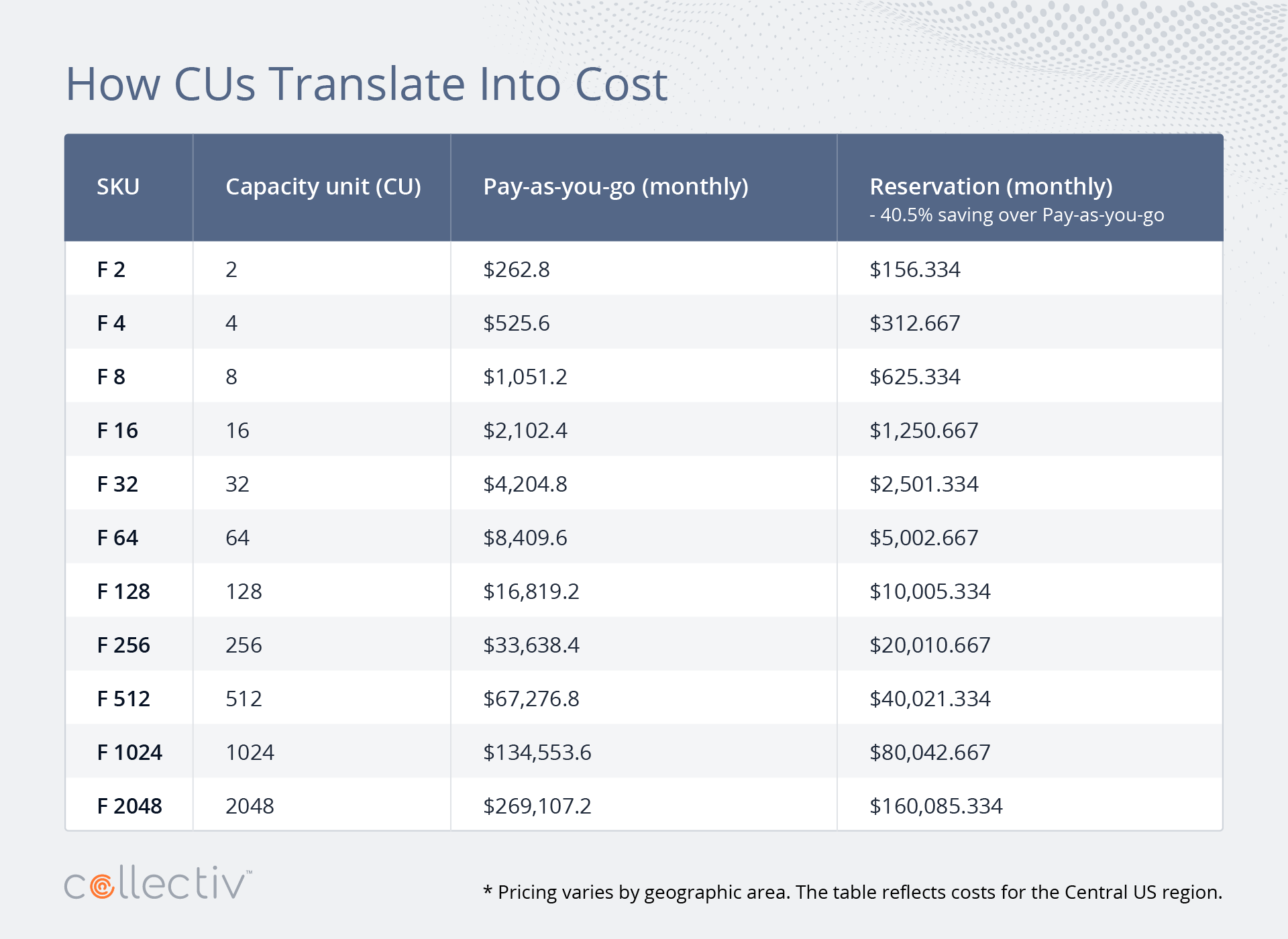
How Do CUs Translate Into Cost?
Microsoft Fabric uses a capacity-based pricing model, where costs are tied to the number of Compute Units (CUs) allocated within a specific SKU. This approach allows organizations to select a capacity tier that aligns with their workload needs while maintaining flexibility and scalability.
Calculation Method: Monthly costs assume continuous 24/7 operation (730 hours per month). Organizations using pause/resume features or running capacity only during business hours will see proportionally lower costs.
Reservation Savings: Committing to a one-year reservation typically provides approximately 40-41% savings compared to pay-as-you-go pricing.
The table below breaks down the cost of each SKU under the pay-as-you-go and reservation options. Please note that pricing varies by geographical area, and the table reflects costs for the Central US region. For more details, refer to Microsoft’s pricing page.
Cost Optimization Tip: Organizations with predictable downtime (nights, weekends) can reduce costs by 50-75% by pausing capacity during inactive periods rather than running 24/7.
Key takeaways for the cost of CUs:
-
- Cost Savings with Reservation: Organizations with predictable workloads can save approximately 40.5% by committing to a one-year reservation plan instead of using the pay-as-you-go option.
- Flexibility with Pay-as-You-Go: For organizations with fluctuating or temporary workloads, the pay-as-you-go option allows dynamic scaling and the ability to pause capacity, avoiding over-provisioning during off-peak periods.
- Scaling Based on CUs: Higher SKUs (i.e. F512 or F1024) scale linearly with CU count making them ideal for enterprise-level workloads that demand significant computational resources across multiple teams and use cases
- Small Business-Friendly Options: Lower SKUs like F2 or F4 provide cost-effective entry points for smaller organizations testing Fabric’s capabilities. As of April 2025, even the smallest paid SKU (F2) includes Copilot and AI capabilities.
- The F64 Decision Point: F64 and higher SKUs eliminate the need for Power BI Pro licenses for report viewers, potentially offsetting the higher capacity cost through per-user license savings. Organizations with 50+ Power BI viewers should evaluate whether F64 provides better ROI than smaller SKUs plus Pro licenses.
What Is the Difference Between the Pay-as-You-Go and Reservation Options?
Microsoft Fabric offers two flexible payment options for capacity: Pay-as-you-go and reservation. Each option caters to different organizational needs, offering flexibility or cost savings depending on usage patterns.
Pay-as-You-Go
Pay-as-you-go capacity allows you to scale resources dynamically based on demand. This model is ideal for organizations with fluctuating workloads or short-term projects, as it lets you adjust your capacity or pause it entirely without any long-term commitment.
Reservation
Reservation involves committing to a specific capacity for a one-year term. This option is suited for organizations with predictable workloads, as it offers significant cost savings compared to pay-as-you-go.
Example of Cost Savings: Pay-as-You-Go vs. Reservation
Pricing Note: The pricing examples below are based on Central US region rates as of October 2025. Pricing varies by Azure region and is subject to change. For the most current pricing in your region, visit the Microsoft Fabric pricing page or consult your Microsoft account representative. The pricing referenced does not account for any organization-specific discounts or enterprise agreements that may apply to your Microsoft account.
To illustrate the cost difference, let’s take the F64 SKU as an example:
- Pay-as-You-Go: Running continuously 24/7 for a month costs $8,409.60.
- Reservation: Committing to a one-year reservation reduces the monthly cost to $5,002.67—a savings of ~$3,407 or ~41%.
This pricing structure rewards organizations that can accurately forecast their capacity needs.
Break-Even Analysis: For F64 capacity, the break-even point where reservation becomes more cost-effective than pay-as-you-go is approximately 14.5 hours of daily usage. This break-even point applies proportionally across all SKU sizes.
When Does Pay-as-You-Go Make More Sense?
In some scenarios, pay-as-you-go may be the better financial option, even with its higher hourly rate:
If your F64 SKU runs only 8–10 hours per day, your costs range between $2,856 and $3,571 per month. This is significantly lower than the monthly reservation cost of $5,002.67, making pay-as-you-go more cost-effective for intermittent or off-peak usage patterns.
Quick Decision Guide:
- Less than 14.5 hours/day: Pay-as-you-go is cheaper
- More than 14.5 hours/day: Reservation is cheaper
- Variable Usage Patterns: Start with pay-as-you-go, monitor for 60-90 days, then reassess
Can I Save Money by Pausing My Fabric Capacity SKU?
Yes, Fabric offers a pause and resume feature, allowing organizations to suspend capacity usage during inactive periods to save costs. When paused, Compute Unit (CU) consumption stops entirely, meaning you won’t incur charges for that capacity.
Pausing immediately stops all ongoing tasks and background operations, which may require a system restart upon resumption. While pausing saves costs, it clears caches, causing a temporary performance slowdown when the system is restarted.
This feature is ideal for organizations with predictable downtime, such as weekends or after business hours.
When pausing your Fabric capacity, keep in mind that OneLake storage charges continue to apply you only save on compute (CU) costs. Additionally, if you’re on a reservation plan, you’ll pay the fixed monthly fee regardless of whether capacity is paused, meaning the pause feature only provides cost savings for pay-as-you-go customers. Capacity typically resumes within 1-2 minutes, though initial queries may be slower due to cache rebuilding after restart.
For organizations with predictable schedules, you can automate pause and resume operations using Azure Automation, PowerShell, or Azure Logic Apps. While there’s no minimum pause duration, you can pause for any length of time, even minutes frequent pausing and resuming may impact user experience, so it’s best to implement consistent schedules aligned with your business hours.
Should You Plan for Average or Peak Usage? Understanding Smoothing
When purchasing a Fabric capacity SKU, many organizations wonder whether they should plan for average or peak usage. Thanks to Microsoft Fabric’s smoothing feature, you can plan for average usage without worrying about sudden spikes in demand.
Smoothing dynamically balances capacity usage by spreading resource consumption over time, allowing your workloads to operate smoothly even during peak demand periods. Here’s what you need to know:
- For interactive jobs (i.e. user-triggered actions), capacity consumption is averaged over a minimum of five minutes to prevent temporary spikes from impacting performance.
- For background jobs (i.e. data refreshes), capacity is balanced across a 24-hour period, ensuring consistent operation.
For example, if a morning workload generates a sudden spike in demand, Fabric’s smoothing feature temporarily increases capacity to handle the load. Later, it redistributes unused capacity during lower-demand periods to maintain balance without exceeding your allocated CUs.
Smoothing allows you to size your capacity based on typical workloads rather than over-provisioning for rare peak events. This not only simplifies capacity management but also optimizes costs by preventing unnecessary scaling.
Common Concerns About Fabric Licensing
Navigating Microsoft Fabric’s licensing can raise important questions for organizations looking to maximize their investment while avoiding common pitfalls. Let’s address some of the top concerns prospects and customers often have when managing Fabric licensing.
What Happens If a Company Exceeds Its Fabric Capacity and Can’t Clear Usage Within 24 Hours?
Microsoft Fabric’s smoothing feature helps organizations balance capacity over a 24-hour period, ensuring that workloads can handle temporary spikes without exceeding allocated resources.
However, if your organization exceeds its available capacity and cannot reduce the “carryforward” usage within the 24-hour window, strict throttling measures are enforced. During this time, all new operations—both interactive and background tasks—are suspended until usage falls back below 100% of the allocated capacity.
If this scenario occurs frequently, it may indicate that your workload demands are outgrowing your current capacity level. Scaling up to a higher capacity SKU can help maintain smooth operations and avoid disruptions.
How to avoid exceeding your available capacity:
- Monitor usage patterns with the Fabric Capacity Metrics App to identify high-demand periods and optimize resource allocation.
- Leverage smoothing to handle occasional spikes without over-provisioning for peak workloads.
- Set proactive alerts at 70-80% capacity utilization to identify trends before throttling occurs.
- If peak usage regularly exceeds your current allocation, consider scaling up to ensure consistent performance.
What’s the Best Way to Monitor Fabric Capacity Usage?
The Fabric Capacity Metrics App is your go-to tool for monitoring and visualizing recent utilization. It breaks down consumption by item types, such as semantic models or pipelines, giving you actionable insights to optimize operations.
Regularly reviewing capacity metrics can help identify underutilized resources and optimize scheduling for high-demand jobs during off-peak hours. Microsoft also provides a Fabric Capacity Estimator tool to help organizations determine the appropriate SKU size based on their expected workload patterns. This tool is particularly helpful for organizations planning their capacity needs or considering migration from Power BI Premium P-SKUs.
Will I Ever Incur Unexpected Charges Over My List Price?
In most cases, Microsoft Fabric’s capacity-based pricing model ensures predictable costs. However, there are two scenarios where unexpected charges could occur:
1. Pausing and Resuming Capacity
Using the Pause/Resume feature clears any queued or throttled jobs immediately. This action may trigger additional charges for the extra capacity consumed up to that point, as the workload was not allowed to be smoothed over a 24-hour period. These overage charges only apply when you pause/resume a capacity that is already in a throttled or over-capacity state. Normal pausing and resuming during regular operation does not incur additional charges beyond standard pay-as-you-go rates for actual usage.
This scenario typically arises when an organization reaches its capacity limits and opts to Pause/Resume to avoid delays caused by queued jobs or slow performance. These charges are billed at pay-as-you-go rates and are capped at no more than one additional day of capacity usage.
2. Manual Scaling
Choosing to manually scale up your capacity SKU results in higher costs due to the increased allocation.
These scenarios can be avoided with proper workload planning, effective use of the smoothing feature, and consistent monitoring of usage patterns to ensure your capacity aligns with your organizational needs.
How Is Storage Charged Since It’s Separate from Capacity?
Microsoft Fabric licenses cover computational resources, but storage is licensed separately through OneLake Storage. As a unified data lake, OneLake consolidates all your organizational data, simplifying access and management.
Storage costs are based on the volume of data stored and include charges for OneLake storage, BCDR storage, and cache. Be sure to account for storage costs in your overall Fabric budget, especially if your data volumes are substantial.
Pricing varies by geographical area, and the table below reflects costs for the Central US region as of October 2025. For detailed pricing, refer to Microsoft’s OneLake pricing page.
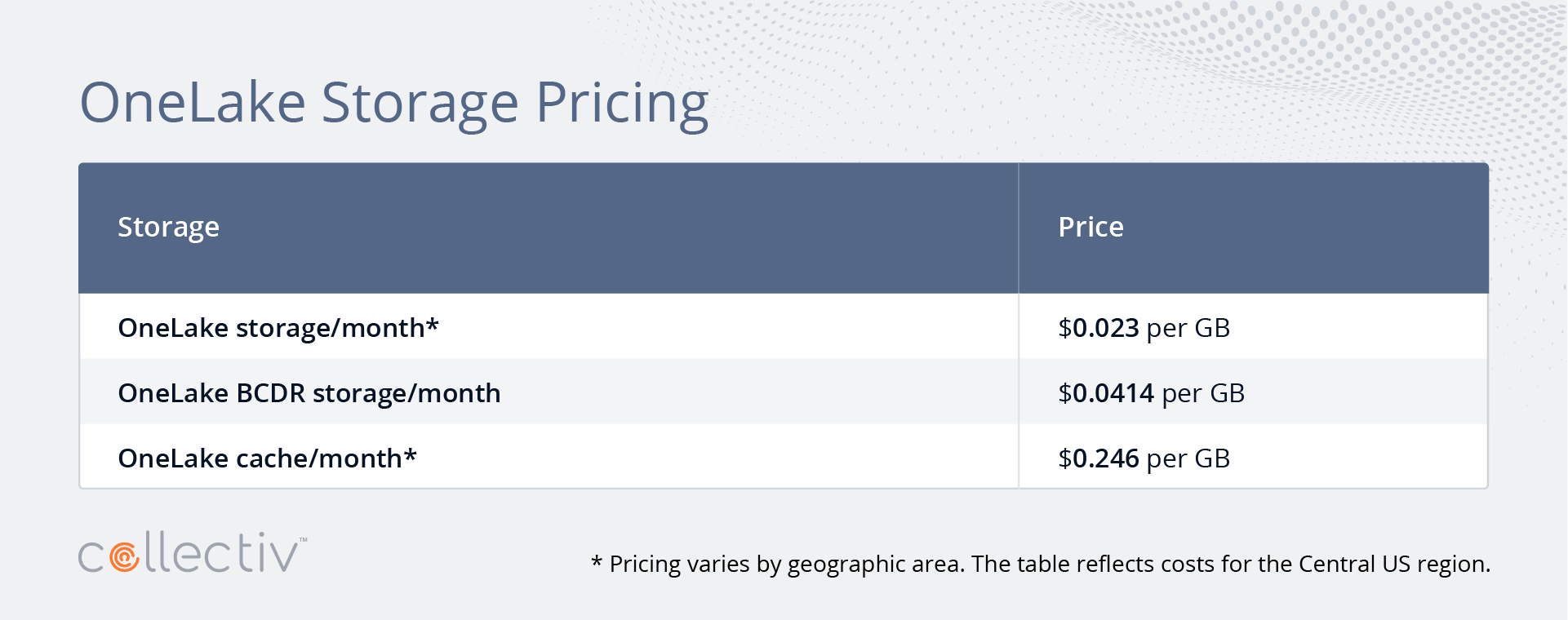
Important: Mirroring storage is provided free up to a limit based on your purchased capacity SKU. For example, an F64 capacity includes 64 TB of free mirroring storage. OneLake storage is only billed when the free mirroring storage limit is exceeded or when the provisioned compute capacity is paused.
Choosing the Right Microsoft Fabric License for Your Organization
We get it, Microsoft Fabric licensing can feel overwhelming.
With so many options, technical details, and features to consider, it’s easy to feel unsure about the best path forward.
At Collectiv, we believe that licensing shouldn’t be such a lonely and difficult process. Whether it’s avoiding overspending, ensuring compliance, or finding the right capacity to support your team’s needs, our goal is to help you make confident, informed decisions.
As a trusted Microsoft partner, Collectiv helps clients navigate the complexities of Fabric licensing. We also provide solutions like our Fabric Tenant Governance Solution, which delivers deeper insights into Fabric Capacity utilization, Power BI usage, and security, ensuring your investment is optimized for your organization’s unique needs.
We’ll work with you to understand your unique challenges and tailor solutions that align with your organization’s goals. Reach out so we can help you select the right Fabric license and strategy.
Last Updated: October, 2025
The information provided in this blog is accurate to the best of our knowledge at the time of publishing and is intended for general informational purposes. Microsoft Fabric licensing, pricing, and featuresare subject to change as Microsoft continues to evolve the platform.
Major licensing changes since initial publication:
- Power BI Premium P-SKUs deprecated (January 1, 2025)
- Flexible trial capacities introduced (F4/F64 options)
- Enhanced clarity on Microsoft 365 and Fabric Free licensing requirements
Please note that the pricing referenced does not account for any organization-specific discounts or enterprise agreements that may apply to your Microsoft account.
We strongly encourage readers to contact Microsoft directly or consult their Microsoft account representative for specific questions regarding licensing, pricing, or enterprise agreements tailored to their organization. For organizations transitioning from Power BI Premium P-SKUs to Fabric F-SKUs, consult with your Microsoft representative about grace periods and migration support.